Posts

Showing posts with the label Flow trigger

How to send dynamic attachments in a email using Power Automate

Image
 We can send documents get from SharePoint or other sources and send as attachments in email. In my case, I need to get the SharePoint document based on the id and convert to PDF. Once we convert to PDF, need to send the PDF document as attachment in a email. To get the SharePoint document, I have used Get File Content method to get the file content. Once we get the content, Using One drive convert method, convert the file to PDF. (before conversion, we need to create same file in One drive using Create File Method). Once we get the file content, we can send the file as attachment in the attachment section as sown below. We can also pass the JSON instead of passing the attachments. We can use this option if we have the array configured already. 

Convert HTML to Text in Power Automate

Image
We got a requirement from the customer to automate the server status details. There ill daily email alert trigger from server to Shared email box. We have created a flow based on the email alert triggered to Shared mail box as below Based on the Subject, Trigger will identify the email. In the trigger condition we have mentioned not to trigger if the Subject contains RE or FW. Once we get the email to extract the content, using HTML to Text conversion action. In HTML to Text conversion email text will convert to string. Once we get the string i am using the string options to extract the required text and converting the string to JSONformat by applying the loops.

Back to Basics – Trigger flows on a schedule

Image
We can create flows to trigger on a specific time in a day or hour or time we can specify using Schedule trigger option. We can create scheduled flow using the steps below, We can have the option to create the time and recurrence while creating the flow Once we create the flow we can have the trigger option in the flow. In the recurrence, we can mention recurrence the recurrence and time zone and Start time by selecting the Advanced Options In the frequency we can have the options Second, Min, Hour, Day , Week   and Month as below We can choose the Time Zone. Based on the location to trigger based on the location.  Based on the selection types (Seconds, Mins, Hours, Days, Week, Months) we can have the options as below.

Check Property Exits or not in Power Automate with different types

To check the value exists in different types we can use Expression in Power Automate. Following are different types of validations. If the type is string, array or object we can use expression below, if(empty(triggerOutputs()?['body/ DataField ']),null,triggerOutputs()?['body/ DataField ']) If the type is different type than string, array, if(empty(string(triggerOutputs()?['body/ DataField '])),null,triggerOutputs()?['body/ DataField ']) If the type is string, array or object we can use expression below, if(empty(triggerOutputs()?['body/ DataField _value']),null,concat(' DataField (',triggerOutputs()?['body/ DataField _value'],')'))

Power Automate - Manfully Trigger multiple flows

Image
 I had a requirement to run multiple failed flow as there was some issue with one of the action. I have corrected the action and client wanted to run the failed ones to get the results as expected with them. There is an option to run the failed flows and run them again in the bulk. We can re-trigger the flow in bulk by navigating to the flow and clicking on All Flows. Select the Failed flows and Click on On Resubmit the Flows as below.   This will run all the selected flow(s). 

Cancel/Resubmit multiple flows

Image
Sometimes we may need to re-submit multiple failed/cancelled flows if we have any issue and after fixing the issues. We can run the flows in Bulk using the steps below, Open https://flow.microsoft.com Click on My Flows in the left navigation Click on the flow to run in bulk Click on All Runs in the flow Select the flow and click on Resubmit on the top as below

Issue with PowerApps trigger flow

Image
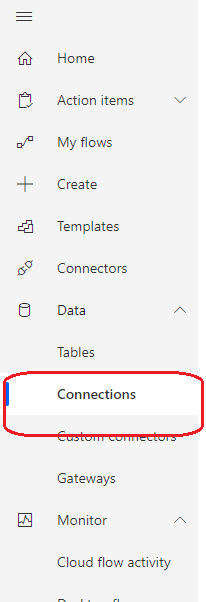
 While working with PowerApps I have configured multiple flows on a PowerApps buttons click. All the flows working as usual and all the sudden they failed to start on the users. Flows working as expected with my account (i.e. when I click on button flow is triggering as expecting). I have verified re-adding the flow to PowerApps and published the app. Not worked. After that I have verified all the flows in the app are having same issue. As the current flow saving the item in the SharePoint list I thought it might be SharePoint permissions. Created a new flow just to send email with manual trigger. It worked as expected. But adding PowerApps trigger not triggered the flow. Tried to use PowerApps trigger V1 and PowerApps trigger v2. It was not worked for both the triggers. After checking multiple options, In flows clicked on connection in the left navigation. Verified all the connections are authenticated. Initially I left it as all of them are connected. But later I have re-auth...